
Introduction
PDF files are everywhere. You may receive a PDF through email, download one from a website, get a document from your school, receive an invoice from a business, or save an important form for later. The good thing about PDF files is that you usually do not need complicated software or technical knowledge to open and read them.
Whether you are using a Windows computer, Mac, iPhone, Android phone, tablet, or even a web browser, there are several simple ways to open and view a PDF.
However, knowing how to open a PDF is only the beginning. It is also useful to understand why PDFs work across different devices, which applications can open them, how to read them efficiently, and what to do when a PDF does not open correctly.
In this guide, I will explain how to open, view, and read PDF files on different devices, along with some practical tips that can make working with PDFs easier.

What Is a PDF File?
PDF stands for Portable Document Format. It is a document format designed to preserve the appearance and structure of a document when it is shared between different devices and operating systems.
For example, if you create a document containing text, images, tables, page numbers, and graphics, saving it as a PDF helps preserve how those elements are arranged.
This is one of the main reasons PDFs are so widely used for:
- School assignments
- Research papers
- Resumes
- Business reports
- Invoices
- Receipts
- Contracts
- Application forms
- User manuals
- Government documents
- Ebooks
- Digital brochures
A PDF can contain much more than simple text. Depending on how it was created, it can include images, hyperlinks, forms, bookmarks, annotations, digital signatures, and searchable text.
How to Open a PDF on Windows
Opening a PDF on a Windows computer is usually very simple.
Method 1: Double-click the PDF
Locate the PDF file on your computer and double-click it.
Windows will normally open the file using your default PDF application. Depending on your computer, this could be a web browser or a dedicated PDF reader.
Method 2: Open the PDF with a web browser
Modern browsers such as Chrome, Microsoft Edge, and Firefox can display PDF files directly.
You can right-click the PDF, select Open with, and choose your preferred browser.
This is useful when you only need to read the document and do not need advanced PDF editing features.
Method 3: Use a dedicated PDF reader
A dedicated PDF application can provide additional features such as:
- Searching within documents
- Highlighting text
- Adding comments
- Filling forms
- Adding annotations
- Rotating pages
- Printing
- Signing documents
For basic reading, however, a browser-based PDF viewer is often enough.
How to Open a PDF on a Mac
Mac computers also provide several easy ways to view PDF files.
Using Preview
Preview is built into macOS and can open PDF files without requiring you to install another application.
Simply double-click the PDF. If Preview is your default application, the document will open automatically.
Preview allows you to:
- Read PDF pages
- Search for text
- Zoom in and out
- Rotate pages
- Add annotations
- Highlight information
- Print documents
- Rearrange pages in many cases
For everyday PDF reading, Preview is often all you need.
Using a web browser
You can also open PDFs in browsers such as Safari, Chrome, or Firefox.
This can be particularly convenient when you download a PDF from a website and want to view it immediately.
How to Open a PDF on an iPhone
You do not need a computer to read PDFs.
On an iPhone, PDFs can be opened directly from applications such as Files, Mail, Safari, Messages, and other apps.
For example, if someone sends you a PDF through email, you can tap the attachment and view it.
If you download a PDF from Safari, you can usually find it in the Files app.
Reading PDFs on an iPhone
When viewing a PDF, you can generally:
- Zoom in and out
- Scroll between pages
- Search for words
- Share the document
- Save it to Files
- Mark up the document
- Print it
- Open it in another compatible application
The smaller screen can make long documents less comfortable to read, but it is extremely useful when you need to quickly check a document while away from your computer.

How to Open a PDF on Android
Android phones and tablets also support PDF files.
If you download a PDF from a website or receive one through email or messaging, your device may automatically open it with an installed PDF viewer.
You can also find downloaded documents through your device's file manager.
Depending on your Android device and installed applications, PDFs may open through a browser, file manager, or dedicated PDF application.
Reading PDFs on Android
You can normally:
- Scroll through pages
- Zoom in and out
- Search for text
- Share the PDF
- Download or save the file
- Highlight or annotate it with compatible applications
- Print it when supported
Android is especially convenient for quickly accessing documents while traveling, working, or studying.
How to Open a PDF on a Tablet
Tablets are particularly useful for reading PDFs because their screens are larger than smartphones while remaining more portable than computers.
You can open PDFs on both iPad and Android tablets using built-in applications, browsers, or PDF reader applications.
For students, tablets can be especially useful for reading:
- Textbooks
- Lecture notes
- Research papers
- Assignments
- Study guides
- Course materials
A larger screen also makes it easier to view tables, diagrams, charts, and images.
How to Open a PDF Directly in a Web Browser
One of the easiest ways to view a PDF is through a web browser.
Most modern browsers can display PDFs without requiring you to download a separate PDF reader.
For example, if you click a PDF link on a website, the browser may open the document in a built-in viewer.
This is useful because you can immediately:
- Read the document
- Search for text
- Zoom
- Navigate between pages
- Download the file
- Print it
- Open it in another application
Browser-based viewing is particularly convenient when you are using a public or shared computer and do not want to install additional software.
How to Read a PDF More Efficiently
Opening a PDF is easy, but reading a long PDF efficiently requires a few useful techniques.
1. Use the Search Function
If a PDF is several pages long, you do not always need to read every page to find a specific piece of information.
Use the search function to look for a keyword or phrase.
For example, if you have a 50-page business report and want to find information about revenue, searching for "revenue" can take you directly to relevant sections.
2. Use Zoom
Zooming is useful when a document contains:
- Small text
- Tables
- Charts
- Technical diagrams
- Detailed images
On a phone, you can usually pinch the screen to zoom in and out.
3. Use Page Thumbnails
Long PDFs often provide a thumbnail or page navigation view.
This lets you quickly see the document structure and jump between pages.
4. Use Bookmarks
Some PDFs contain bookmarks that act like a table of contents.
Bookmarks can make longer documents much easier to navigate.
5. Use Text Selection
If the PDF contains selectable text, you can often copy a section for notes or reference.
However, this depends on how the PDF was created.
A scanned document may contain images of pages rather than actual digital text.
What If You Cannot Select Text in a PDF?
This is a common situation.
Not every PDF contains actual text.
For example, a scanned paper document may simply contain an image of each page. Although it looks like text to you, the computer may see the page as one large image.
This means you may not be able to:
- Select individual words
- Search for text
- Copy text
- Easily edit the document
This is where OCR, or Optical Character Recognition, can help.
OCR software analyzes the image and attempts to recognize the characters and convert them into searchable text.
The accuracy can depend on the quality of the scan, fonts, handwriting, image quality, and document layout.

Why Do PDFs Work Across Different Devices?
The portability of PDF files is one of their biggest advantages.
PDF was designed to preserve a document's appearance when it is viewed or printed on different systems.
A PDF can contain information about the document's layout, fonts, images, and other elements needed to reproduce the document consistently.
That is why the same PDF can generally be opened on:
- Windows
- macOS
- Linux
- iOS
- Android
- Tablets
- Web browsers
The exact appearance can still vary in unusual cases, especially with poorly created PDFs, missing fonts, interactive elements, or specialized features.
But for ordinary documents, PDFs provide excellent cross-device compatibility.
Do You Need Internet to Read a PDF?
No.
Once a PDF has been downloaded to your device, you can generally open and read it without an internet connection.
This makes PDFs useful for situations where internet access is limited.
For example, you could download:
- A travel itinerary
- An ebook
- A school assignment
- A hotel confirmation
- A product manual
- A business report
before leaving an area with reliable internet access.
What to Do When a PDF Will Not Open
Sometimes a PDF may fail to open properly.
There are several possible reasons.
The File May Be Damaged
If the PDF was incompletely downloaded or corrupted, your PDF viewer may not be able to read it.
Try downloading the file again.
The Application May Have a Problem
Try opening the PDF using another browser or PDF reader.
For example, if it does not open in one application, try another compatible viewer.
The PDF May Use Special Features
Some PDFs contain interactive forms, multimedia, advanced security settings, or other features that may not work equally well in every viewer.
In these situations, using the application recommended by the document's creator may provide better results.
The File May Require a Password
Some PDF files are password protected.
If the document is encrypted, you may need the correct password before you can view its contents.
How I Personally Work With PDF Files
PDFs have become a regular part of my own digital workflow.
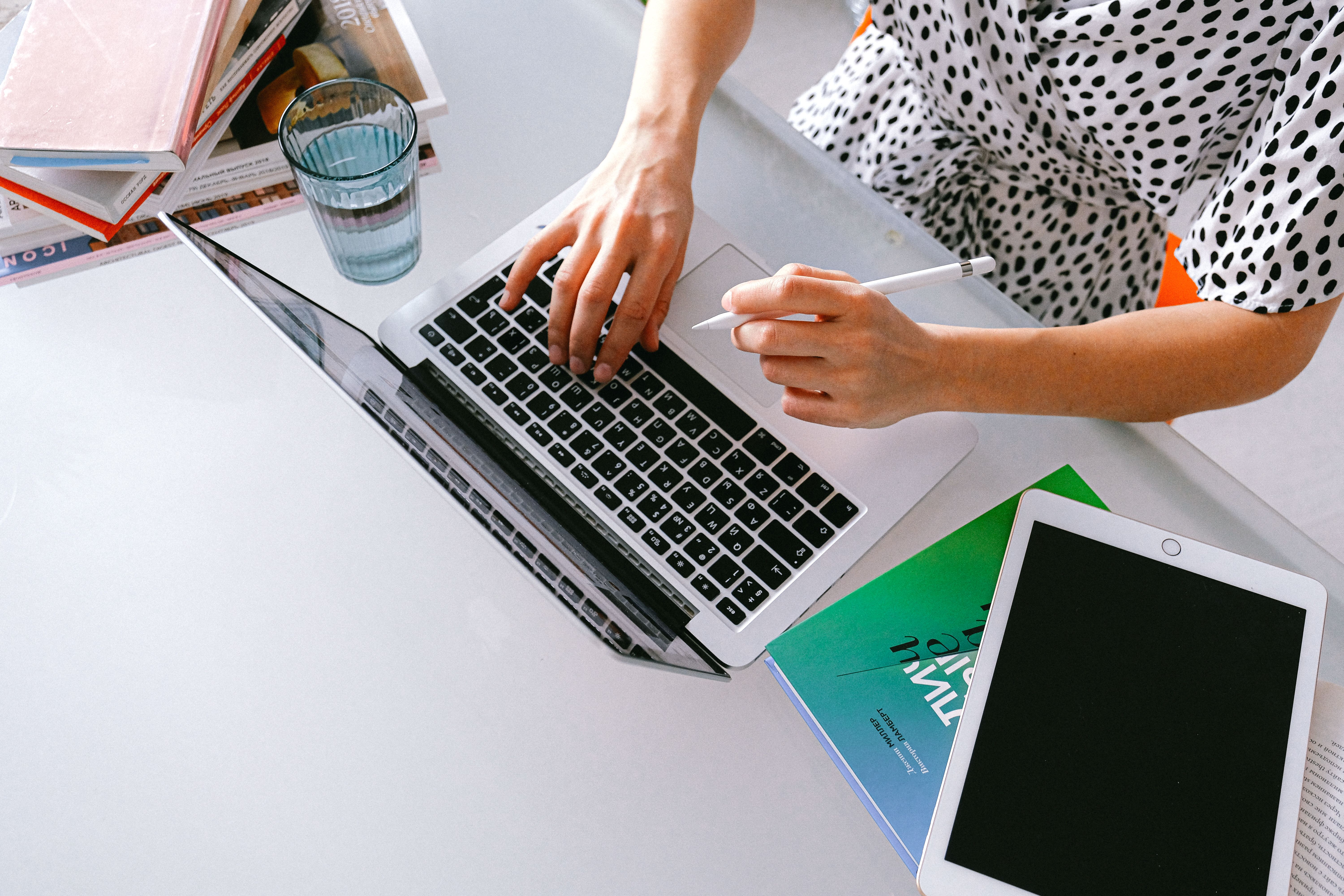
I work with documents across computers and mobile devices, and I often need to move information between different environments. One of the things I appreciate most about PDFs is that I do not have to worry as much about whether the person receiving the document is using the same operating system or software that I am using.
For example, I might prepare a document on my computer, save the final version as a PDF, and then open it later from another device. The document remains easy to access and the layout stays consistent.
This is particularly useful when working on projects, reviewing documents, sharing information, or keeping records.
Working with PDFs has also influenced how I think about document tools. While developing and working with PDF-related projects, I have seen how many small tasks people need to perform, such as merging documents, splitting pages, compressing files, converting formats, extracting pages, or simply viewing a document.
That experience has made me appreciate that a good PDF workflow is not just about opening a file. It is about making documents easier to access, organize, understand, and use.
Why Cross-Device PDF Access Benefits Me
The ability to access PDFs from different devices saves me time.
I do not have to keep everything tied to one computer. If I need to check a document while away from my desk, I can use my phone or tablet.
It is also helpful when sharing documents with other people. Instead of worrying about whether someone has the exact software or operating system I used to create the original document, I can provide a PDF that they can usually open with tools they already have.
For work and personal organization, this creates a simpler workflow:
Create → Save as PDF → Share → Open anywhere → Review or archive
That simplicity is one of the reasons PDF continues to be such an important document format.
PDF Reading Tips for Students
Students frequently work with PDFs, especially for assignments, research papers, textbooks, and course materials.
A few habits can make studying from PDFs easier:
- Download important PDFs instead of relying only on browser tabs.
- Organize files into clearly named folders.
- Use search instead of manually scanning long documents.
- Highlight important sections when appropriate.
- Use bookmarks for longer reading materials.
- Keep backup copies of important academic documents.
- Check whether scanned PDFs support text search before relying on them for research.
- Use a larger screen when reading lengthy academic papers if possible.
A well-organized PDF library can make it much easier to find information later.
PDF Reading Tips for Business Users
PDFs are equally important in professional environments.
Businesses commonly use PDFs for reports, invoices, contracts, proposals, forms, and documentation.
When handling business PDFs, it is useful to:
- Give files descriptive names.
- Keep final versions separate from editable source files.
- Use folders to organize documents.
- Protect sensitive documents when necessary.
- Use digital signatures when appropriate.
- Keep important records backed up.
- Avoid creating multiple confusing versions of the same document.
Good organization can be just as important as the PDF format itself.
Are All PDF Readers the Same?
No.
Basic PDF viewers are generally designed for opening and reading documents. More advanced PDF applications can provide additional features such as editing, annotations, form creation, OCR, signatures, document organization, and other functions.
If you only need to read a PDF, you may not need a feature-heavy application.
For everyday reading, a browser or built-in PDF viewer can often do the job.
If you regularly work with PDFs professionally, however, additional tools may be worthwhile.
Final Thoughts
Opening and reading a PDF is one of the simplest things you can do with a digital document, but understanding how PDFs work across different devices makes the experience much easier.
Whether you are using Windows, Mac, iPhone, Android, a tablet, or a web browser, you have several ways to access PDF files.
The biggest advantage is convenience. You can create a document on one device, share it with someone using another device, and generally expect the document to remain readable and visually consistent.
From my own experience, this flexibility saves time and makes document management easier. I can move between devices without constantly worrying about compatibility, and I can keep important documents in a format that is easy to share, read, and archive.
That combination of portability, compatibility, and simplicity is a major reason PDFs remain one of the most useful document formats in everyday digital life.

Post a Comment