
Introduction
When you share a document with someone, you want them to see the same information and layout that you intended. Whether they open it on a desktop computer at work, a tablet during a meeting, or a smartphone while traveling, the document should remain clear, organized, and professional.
However, documents created in word processors, presentation software, and other applications can sometimes look different when opened on another device. Fonts may change, paragraphs may shift, tables can become misaligned, and page breaks may move. These differences can create confusion, especially when sharing business reports, proposals, invoices, contracts, or other important documents.
This is one of the main reasons PDF, or Portable Document Format, has become a popular choice for digital document sharing. PDF is designed to preserve a document's page layout, typography, images, and formatting across different platforms. Although the exact display can vary slightly between PDF viewers, a properly created PDF provides a much more consistent viewing experience than many editable document formats.
In this article, we will explore how PDF documents maintain their appearance across computers, tablets, and phones, why this consistency matters for businesses and individuals, and how you can create PDFs that are easier to view on different screens.

1. What Makes PDF Different From Other Document Formats?
Many document formats are designed primarily for creating and editing content. For example, a word-processing document may adjust its layout based on the fonts installed on a computer, the software version being used, or the page settings configured by the recipient.
PDF works differently. It is designed to preserve the intended appearance of a document rather than automatically rearranging its content every time it is opened.
A PDF can retain important visual elements, including:
- Font styles and text formatting
- Page dimensions and orientation
- Paragraph spacing and margins
- Tables, charts, and images
- Headers, footers, and page numbers
- The positioning of text and other page elements
According to Adobe's documentation, PDF preserves fonts, images, and layout from source documents created with different applications and platforms. Font embedding is particularly important because it can prevent a viewer from substituting a different font when the original font is unavailable. Read Adobe's PDF overview.
Consider a business proposal containing a company logo, a pricing table, and several pages of carefully formatted information. If you share the editable source document, the recipient's software might interpret some formatting differently. When you export the proposal as a properly prepared PDF, its page structure is much more likely to remain as intended.
This makes PDF especially useful when the recipient needs to review or print a document rather than make extensive changes to its original layout.
2. How PDFs Maintain Consistency Across Different Devices
PDF documents can be opened on computers, tablets, and smartphones using compatible applications or built-in PDF viewers. The device may change, but the underlying document retains its defined page layout.
Viewing PDFs on desktop and laptop computers
Computers are often used for preparing reports, reviewing contracts, editing business documents, and working with spreadsheets or presentations.
On a desktop or laptop, PDF viewers can display the document at different zoom levels without changing its underlying page design. Readers can inspect individual pages, search for text, follow links, and print the document when needed.
For example, a company might send a five-page project proposal to a potential partner. The partner can open the PDF on a Windows PC or Mac and review the same page structure, headings, and charts without needing the original authoring application.
Viewing PDFs on tablets
Tablets offer a middle ground between computers and smartphones. They are useful for reviewing reports during meetings, reading manuals, checking invoices, or presenting information to clients.
PDF documents retain their page dimensions and layout on tablets. Readers can zoom in to examine details, rotate the screen, and navigate between pages using the features supported by their PDF viewer.
A landscape-oriented tablet may provide a comfortable view of a wide table or presentation page. In portrait orientation, the same document remains intact, although the reader may need to zoom or scroll horizontally to inspect some content.
Viewing PDFs on smartphones
Smartphones make it possible to review documents almost anywhere. Employees can check an invoice before approving a payment, customers can open a product guide, and business partners can review a proposal while away from their desks.
A PDF preserves the original page layout on a phone, but the smaller screen changes how much content is visible at once. Readers may need to zoom in or move around the page to read small text.
Some PDF applications offer accessibility or reading features that rearrange eligible content into a more mobile-friendly view. These features can improve readability, but they are different from the original fixed-page layout.
The key advantage is that the document's intended structure remains available, even when the screen is much smaller.
3. Why PDF Formatting Remains More Reliable
Consistent viewing depends on several important characteristics of the PDF format.
Fixed page layout
A PDF uses defined pages rather than allowing the entire document to reflow automatically like a typical responsive webpage or word-processing view.
This helps preserve the placement of headings, paragraphs, images, tables, and other elements. A heading intended to appear at the top of a page is less likely to move into the middle of another section simply because the recipient is using a different screen.
Fixed layouts are especially helpful for invoices, official letters, business proposals, forms, and documents where page structure matters.
Font embedding
Fonts influence the appearance and readability of a document. If a document uses a font that is not available on the recipient's device, some formats may substitute another font, potentially changing line lengths and spacing.
PDF creators can embed fonts when permitted by the font's licensing terms. This allows the document to carry the font information needed to reproduce its intended appearance.
For instance, a branded proposal may use a specific heading font and a different body font. Embedding the fonts helps the proposal maintain its visual identity when opened on a computer that does not have those fonts installed.
Font embedding is not automatic in every PDF creation workflow, so it is worth checking the settings when appearance is particularly important.
Preserved graphics and images
PDF files can contain logos, illustrations, charts, screenshots, and photographs alongside text. Their positions and dimensions can be preserved as part of the page design.
This is useful for business presentations, product manuals, training materials, and marketing documents where visual elements communicate important information.
A logo that appears in the header of a company brochure should remain in the same intended position when the file is opened on another device. The viewing size may change, but the layout remains defined by the PDF.
Defined page dimensions and margins
PDF documents can retain standard page sizes, orientations, and margins. These settings matter when a document must be viewed on screen and printed later.
A business report designed for A4 or US Letter paper can maintain its intended page boundaries across different devices. This reduces the likelihood of unexpected page breaks and content shifting during routine viewing.
The final print result still depends on printer settings, paper size, and the selected print options.
4. Why Consistent PDF Viewing Matters for Businesses
For businesses, document consistency is more than a visual preference. It supports clear communication, accurate review, and a professional experience for employees, clients, suppliers, and partners.
Professional proposals and reports
A proposal may contain pricing information, service descriptions, project milestones, and supporting graphics. If these elements shift unexpectedly, the recipient may have difficulty following the information or may question the quality of the document.
Sharing a PDF helps keep the proposal's layout stable, making it easier for the recipient to review the same structured information.
Invoices and financial documents
Invoices need clear labels, aligned amounts, tax calculations, payment instructions, and business details. A layout problem can make important information difficult to identify.
PDF is a practical format for sending finalized invoices because the intended arrangement of fields and totals can be preserved. Businesses should still verify that figures are correct before distributing the file.
Contracts and official records
Contracts, agreements, and formal letters often contain numbered clauses, signature areas, dates, and carefully arranged sections.
A consistent page layout makes these documents easier to review and reference. However, a PDF's appearance alone does not guarantee that the document is legally valid, authentic, or protected from alteration. Appropriate signing, access controls, and verification may also be necessary.
Employee handbooks and training materials
Organizations frequently share policies, onboarding instructions, technical documentation, and training guides with employees using different devices.
PDF helps maintain a common page structure across those devices. Employees can refer to the same sections and page numbers, making discussions and training sessions easier to coordinate.
Client communication
When a business shares documents externally, it cannot always control which device or application the recipient will use.
PDF reduces dependence on a particular word processor or presentation application. It offers a practical way to distribute information in a format that recipients can generally open without needing to edit the original file.
5. How PDF Supports Cross-Platform Compatibility
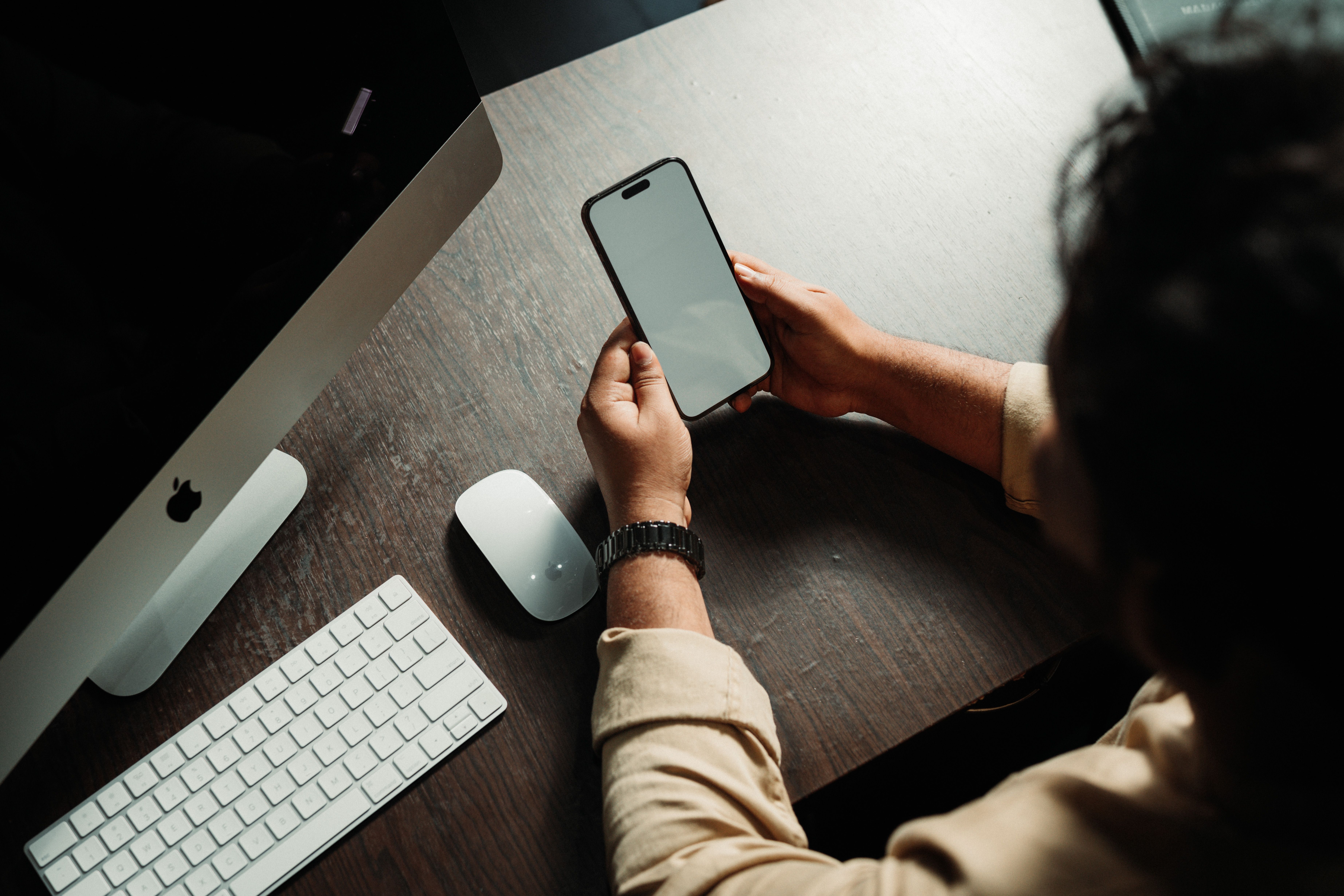
People use a wide range of operating systems and applications. One employee might use Windows, another might use macOS, and a customer might open the same file on an Android phone or an iPad.
PDF is designed for this kind of cross-platform exchange. Compatible viewers are available across major desktop and mobile platforms, and many modern browsers can open PDFs directly.
This provides several benefits.
Less dependence on the original software: Recipients generally do not need the same application that was used to create the document.
More predictable presentation: The document retains its defined page layout rather than relying entirely on the recipient's default document settings.
Simpler distribution: A business can send one PDF file to multiple recipients instead of preparing separate versions for different operating systems.
Convenient archiving: Finalized documents can be stored and retrieved in the same page-based format used for distribution.
Compatibility does not mean every viewer will behave identically. Advanced forms, interactive elements, annotations, transparency effects, and unsupported features can sometimes display differently across applications. Testing important documents in more than one viewer can help identify these issues before sharing.
6. Does a PDF Look Exactly the Same on Every Screen?
PDF is designed to preserve a document's layout, but there is an important distinction between preserving the layout and displaying every detail at an identical physical size.
A page viewed on a 27-inch monitor will naturally appear larger than the same page on a six-inch smartphone. Screen resolution, zoom level, device orientation, application controls, and viewer capabilities can all affect the viewing experience.
The document may also look slightly different if it uses fonts that were not embedded, complex transparency effects, interactive features, or other elements that different viewers handle differently.
It is therefore more accurate to say that PDFs help preserve the intended layout and appearance than to promise that every device will render every PDF pixel for pixel identically.
For everyday business documents, this distinction does not reduce the format's usefulness. It simply highlights why good PDF creation practices and basic quality checks remain important.
7. How to Create PDFs That Look Consistent Across Devices
Creating a PDF is only part of the process. The way you prepare the document can influence how reliably it appears on different screens.
Use the export feature in the original application
When possible, export the document directly from the application in which it was created. For example, use the export or save-as-PDF option in your word processor, presentation software, or design application.
This can help preserve layout information more reliably than copying content into a different application and rebuilding the document manually.
Embed fonts when appropriate
Check whether the fonts used in your document are embedded in the exported PDF. This is especially important for branded documents, specialized typography, multilingual content, and files intended for broad distribution.
If a font cannot be embedded because of licensing restrictions, consider using a suitable alternative that can be distributed more reliably.
Use clear, readable typography
Choose fonts and sizes that remain comfortable to read on a typical computer screen. Avoid making body text unnecessarily small just to fit more information on each page.
For mobile readers, clear headings, reasonable line spacing, and sufficient contrast can make a substantial difference.
Keep page layouts organized
Use consistent margins, headings, spacing, and alignment. Avoid placing essential text too close to page edges or relying on complicated arrangements that may be difficult to read at smaller zoom levels.
For wide tables, consider whether the information would be easier to review on a landscape page or in a separate appendix.
Optimize images carefully
Large images can increase file size, while excessive compression can reduce image quality. Choose export settings that balance visual clarity with practical download and sharing requirements.
Adobe's PDF settings documentation explains how image compression, resolution, compatibility, and font handling affect the resulting file. Explore Adobe's PDF settings overview.
Test the PDF before sharing it
Open the finished PDF and check the pages before sending it to clients or colleagues.
Look for missing fonts, misplaced images, clipped text, unusual line breaks, and tables that are difficult to read. If the document is particularly important, inspect it on both a computer and a smartphone.
This final review can prevent avoidable formatting problems from reaching the recipient.
8. Making PDFs Easier to Read on Mobile Devices
Although PDF preserves a fixed page layout, a document designed primarily for a large monitor may not be comfortable to read on a phone.
A few practical adjustments can help.
- Use readable font sizes. Avoid tiny body text and overly dense paragraphs.
- Keep paragraphs focused. Shorter sections are easier to navigate on small screens.
- Create clear headings. Readers should be able to identify the beginning of each section quickly.
- Avoid unnecessarily wide tables. Large tables may require horizontal scrolling on phones.
- Use descriptive links. Link text should explain where it leads rather than relying on vague labels.
- Check contrast. Text should be easy to distinguish from its background.
- Consider accessibility. Use properly tagged PDFs, logical reading order, document titles, and meaningful text descriptions for images when appropriate.
For documents intended mainly for reading on mobile devices, it may also be useful to offer an HTML version alongside the PDF. A webpage can reflow to fit different screen widths, while the PDF remains available when readers need the original page layout or a printable copy.
Offering both formats can provide a good balance between consistent presentation and mobile usability.
9. PDF Documents and Accessibility
Visual consistency is valuable, but a document should also be usable by people who rely on assistive technologies.
A PDF may look correct on screen while still having accessibility problems. For example, a scanned document may contain images of text rather than searchable text. A file may also have an incorrect reading order or lack the structure needed by screen readers.
To improve accessibility:
- Export from the original document using accessibility-aware settings when available.
- Use meaningful heading structures and logical reading order.
- Make sure text can be selected and searched when appropriate.
- Add useful alternative text to informative images.
- Check that tables and lists have understandable structures.
- Run an accessibility check and review the document with suitable tools.
For documents that must be both accessible and visually consistent, it is important to consider these requirements during creation rather than treating accessibility as a final cosmetic step.
10. Using QuickPDFs to Simplify Document Workflows
Working with digital documents often involves more than simply opening a file. You may need to convert a document into PDF, combine pages, compress a large file, or prepare a document for easier distribution.
Tools such as QuickPDFs can help simplify common PDF tasks by providing browser-based document utilities. Instead of searching for a separate application for every small task, users can look for an appropriate tool within one workflow.
For example, a small business preparing a report for clients might need to convert a document into PDF and reduce its size before sending it by email. A student might need to combine several documents into one file, while a developer may need to prepare documentation for sharing with a team.
The right workflow depends on the document and the task. After converting or modifying a file, always review the output to confirm that its formatting, page order, and content remain correct.
When working with confidential documents, check the service's privacy and file-handling policies before uploading sensitive information.
11. My Perspective on PDF Consistency in Software and Business Workflows
From my perspective working on software products and business-focused digital tools, document consistency is a practical issue that affects everyday communication.
A document might be prepared on a development computer, reviewed by a colleague on a laptop, and then opened by a customer on a phone. The people involved may use different operating systems, screen sizes, and applications. The goal is to make sure everyone can understand the same information without having to troubleshoot avoidable formatting differences.
This is one reason I consider PDF an important part of a reliable document-sharing workflow. It provides a stable presentation format for finalized reports, instructions, proposals, and other materials that need to be distributed across different environments.
At the same time, the best format depends on the task. When several people need to edit and revise content together, a collaborative document may be more appropriate. When the goal is to share a finished version with its layout intact, PDF is often the better choice.
The most useful approach is to choose the format that fits the job, prepare the file carefully, and check how it appears before distributing it. Small steps like these can make digital communication more dependable for both businesses and individuals.
12. Common Mistakes to Avoid When Sharing PDFs
Even though PDF is designed for consistent presentation, certain mistakes can reduce its reliability or usability.
Assuming every viewer supports every feature. Complex forms, embedded media, and interactive elements may behave differently across applications. Test these features if recipients depend on them.
Using fonts that are not embedded. Missing fonts can cause substitutions and alter the appearance of text. Check font embedding when precise typography matters.
Creating documents with very small text. A fixed page layout does not automatically make a document easy to read on a smartphone. Design with screen readability in mind.
Compressing images too aggressively. Excessive compression can make charts, screenshots, and illustrations difficult to inspect.
Ignoring accessibility. A document can preserve its visual appearance while remaining difficult for screen-reader users to navigate.
Failing to review the exported file. The source document may look correct, but conversion settings can affect the final output. Always check the PDF itself.
Treating PDF as an editing format for every situation. PDF works well for distributing finished documents, but extensive collaborative editing is often easier in the original authoring application.
Avoiding these mistakes helps make PDF documents more reliable, professional, and convenient to use.
Conclusion
PDF documents help ensure consistent viewing across computers, tablets, and phones by preserving the intended page layout, fonts, graphics, margins, and other formatting elements. This makes the format especially useful for sharing finalized business reports, invoices, contracts, proposals, manuals, and other documents that need to retain their structure.
Although screen sizes and PDF viewers can affect how a document is displayed, a well-prepared PDF reduces many of the formatting problems associated with sharing editable documents across different devices and platforms.
For the best results, export documents carefully, embed fonts when appropriate, use readable layouts, consider accessibility, and test important files before sharing them.
Whether you are managing business paperwork, preparing client materials, or organizing personal documents, PDF provides a practical way to distribute information while keeping its intended appearance intact. With a suitable workflow and tools such as QuickPDFs, handling everyday PDF tasks can become simpler and more efficient.

Frequently Asked Questions
1. Why do PDF documents look consistent across different devices?
PDF preserves a document's defined page layout, text formatting, images, and other visual elements. This helps the file maintain its intended appearance across compatible viewers on different operating systems and devices.
2. Do PDFs look exactly the same on computers and phones?
The underlying page layout is designed to remain consistent, but the viewing experience can differ because of screen size, zoom settings, resolution, and PDF viewer capabilities. On a phone, readers may need to zoom in or scroll to read the same page comfortably.
3. Why is PDF better than Word for sharing finalized documents?
PDF is often preferable when the recipient needs to review or print a finalized document without changing its layout. Word-processing files are generally more suitable when recipients need to edit the content collaboratively.
4. Can PDFs be opened on Windows, Mac, Android, and iPhone?
Yes. PDFs can be opened on these platforms using compatible applications or supported browser viewers. Some advanced features may vary depending on the application.
5. Does a PDF preserve fonts and formatting?
PDF is designed to preserve fonts and formatting. Embedding fonts when permitted helps prevent font substitution and supports a more consistent appearance across devices.
6. Why does my PDF look different in different applications?
Different PDF viewers may support or render certain features differently. Missing embedded fonts, annotations, transparency effects, interactive forms, and advanced content can contribute to display differences.
7. How can I make a PDF easier to read on a smartphone?
Use readable font sizes, clear headings, short sections, sufficient contrast, and simple layouts. Avoid unnecessarily wide tables and consider providing an accessible HTML version for content that people will primarily read on mobile devices.
8. Does PDF preserve images and logos?
PDF can preserve images and logos in their intended positions and dimensions within the page layout. Image quality still depends on the original image and the export or compression settings used.
9. Can PDF documents be printed consistently?
PDF helps preserve page dimensions, margins, and layout, which supports predictable printing. However, the final result can still depend on printer settings, paper size, scaling options, and printer capabilities.
10. Are PDFs suitable for business documents?
Yes. PDFs are widely used for business proposals, invoices, reports, contracts, manuals, and finalized forms because they help maintain a consistent presentation and are easy to distribute across platforms.
11. Does converting a document to PDF make it secure?
No. Conversion to PDF does not automatically make a document secure or prevent all unauthorized changes. Sensitive documents may require access controls, encryption, digital signatures, or other appropriate safeguards.
12. Can I use QuickPDFs to manage PDF files?
QuickPDFs provides browser-based PDF utilities for common document tasks. Choose the appropriate tool for your needs and review the resulting file to make sure its content and formatting remain correct.
Post a Comment